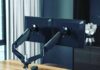

A dual monitor stand lifts both screens off the desk, puts them at eye height, and reclaims the square foot of desk their factory bases were squatting on — and in 2026 the category is a solved problem at a friendly price: the VIVO dual desk mount below holds a 4.6-star average across more than 60,000 owners for about the cost of a dinner out. This guide keeps what still matters — the seven things to check before buying and the positioning rules that make two monitors ergonomic — and retires the dead listings (Dell’s MDS19 and Loctek’s gas-spring arm both lost their buy boxes).
Why two monitors, and why a stand
The two-monitor case is workflow: reference on one screen, work on the other, no alt-tab tax. The stand’s case is ergonomic and spatial: factory monitor bases sit too low (forcing neck flexion), can’t align two screens to one height, and occupy the desk’s prime real estate. A proper dual stand fixes all three — screens at eye level, bezels aligned, desk surface back — and on a sit-stand desk it moves both screens as one unit instead of two wobbling towers.
The seven things to check before buying
Material and strength: steel arms and a rated capacity above your monitors’ combined weight — check your screens’ weight with stands removed, then add margin. VESA compatibility: 75×75 and 100×100 covers most monitors; ultrawides and 32-inch-plus panels sometimes need adapters. Size range: every arm lists a supported diagonal — respect it. Flexibility: full-motion arms tilt, swivel, rotate to portrait, and extend; fixed-pole stands only align heights — cheaper, but you’re buying alignment, not adjustability. Ease of adjustment: gas-spring arms reposition with a fingertip; bolt-tension arms need a hex key each time — daily adjusters want gas springs. Attachment: C-clamps install anywhere with a desk edge; grommet mounts are tidier if the desk has the hole; both beat drilling. Cable management: integrated channels are the difference between a clean float and a hanging vine.
The picks we verified this month
 VIVO Dual Monitor Desk Mount, Heavy Duty Fully Adjustable Steel Stand, Holds 2 Computer Screens up to 30 inches and Max 22lbs Each, Black, STAND-V002
- 4.6 stars across 60,000+ owners - the category benchmark
- Full-motion arms at a fixed-stand price
- C-clamp or grommet mount - no drilling
- Heavier 27-inch-plus panels strain the arms at full extension
- Basic cable clips - budget a sleeve for a clean look
The default answer, and the most-reviewed product this site has ever covered: VIVO’s dual articulating mount holds two screens up to 27-ish inches, clamps or grommets to any desk, and its 60,000-plus owners at 4.6 stars have stress-tested every failure mode for you. Full-motion adjustability at a fixed-stand price is the whole pitch, and it’s why the cheap-arm category consolidated around it.
 Mount-It! Dual Monitor Stand | Double Monitor Desk Stand Fits Two x 21 22 23 24 27 28 30 32 Inch Computer Screens | Freestanding Base | 2 Heavy Duty Full Motion Adjustable Arms | VESA Compatible
- Freestanding weighted base - no clamp needed
- Works on glass desks, thick tops, rentals
- Aligns two screens to one height cheaply
- Base occupies desk space an arm would free
- Less adjustable than full-motion arms
The verified alternative for freestanding setups: Mount-It!’s weighted-base dual stand needs no clamp edge — it just sits on the desk — which makes it the pick for glass desks, thick tops, and rentals where even a clamp feels like commitment. Trade-off: a base on the desk gives back some of the space an arm reclaims.
What happened to the old picks
Two retirements from this guide’s previous version: the Dell MDS19 dual stand — a lovely piece of hardware — sits without a buy box on Amazon (Dell channels it through dell.com and enterprise resellers now), and the Loctek gas-spring arm is likewise in no-default-seller limbo as the brand consolidated under FlexiSpot. Premium shoppers wanting the gas-spring experience should read our Ergotron coverage — the reference brand in that class.
Positioning: the rules that make it ergonomic
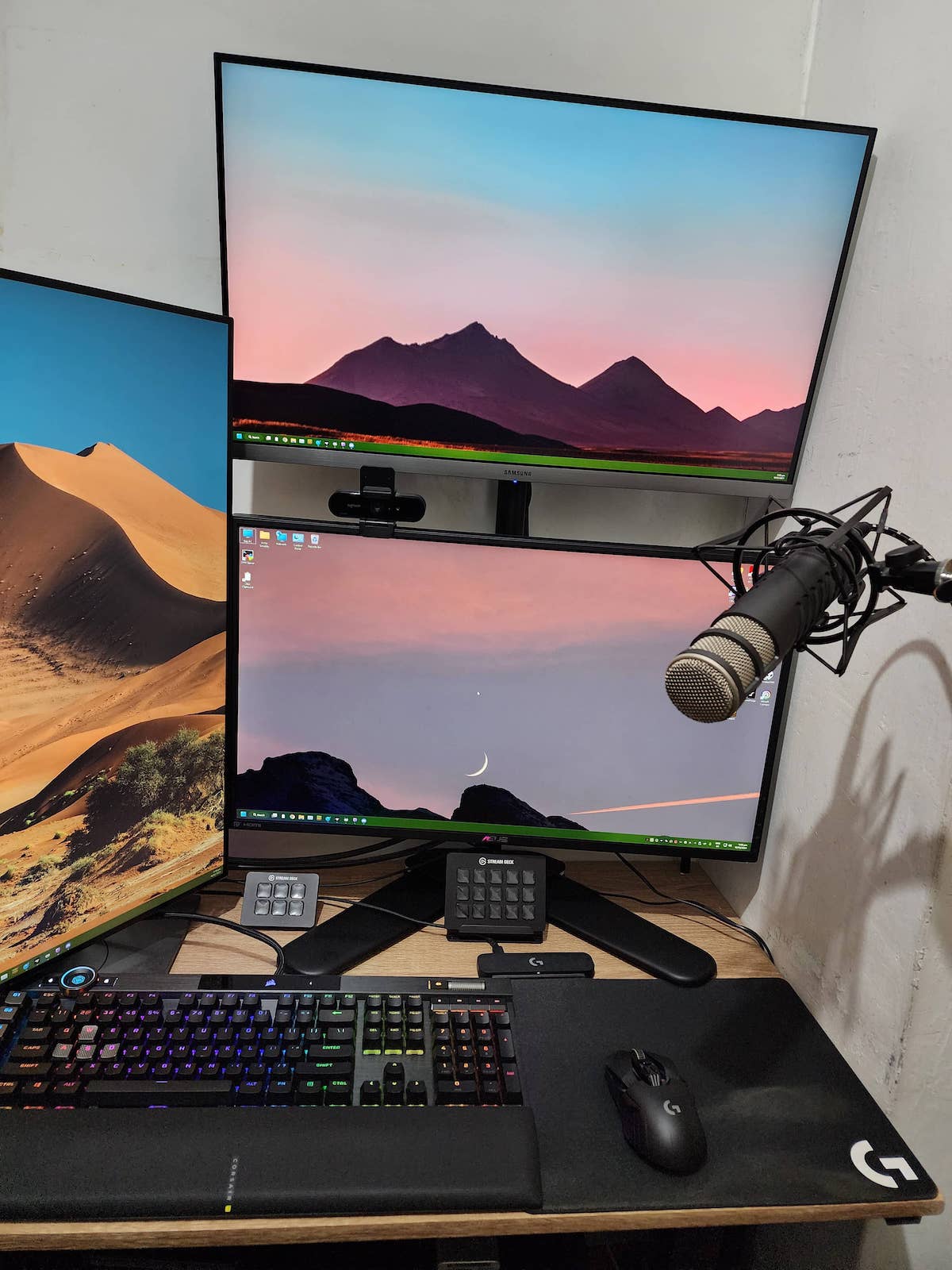
Height: the top third of each screen at eye level — eyes naturally rest slightly below horizontal. Distance: an arm’s length away, roughly 20 to 30 inches, farther for larger panels. Angle: if you use both screens equally, center the bezel seam in front of you and angle each screen inward a few degrees; if one screen is primary, center it squarely and wing the secondary at 20 to 30 degrees. Tilt: a slight upward tilt (10 to 15 degrees) keeps the whole panel equidistant from your eyes. Get these four right and the neck ache that sent you shopping disappears within the week — the same posture math as our desk height guide.
Our expert’s bottom line
Buy the VIVO unless you have a specific reason not to; buy the Mount-It! if that reason is “nothing can clamp to this desk”; buy an Ergotron if the monitors are heavy, ultrawide, or repositioned daily. Whatever holds the screens, spend five minutes on the positioning rules above — the stand is hardware, but the ergonomics are in the setup. Triple-screen ambitions graduate to our triple monitor stand guide.
Last updated: August 22, 2026 — full 2026 refresh: buying checklist consolidated to seven checks, dead-channel picks retired (Dell MDS19, Loctek), VIVO and Mount-It! listings re-verified, positioning rules kept and tightened.