

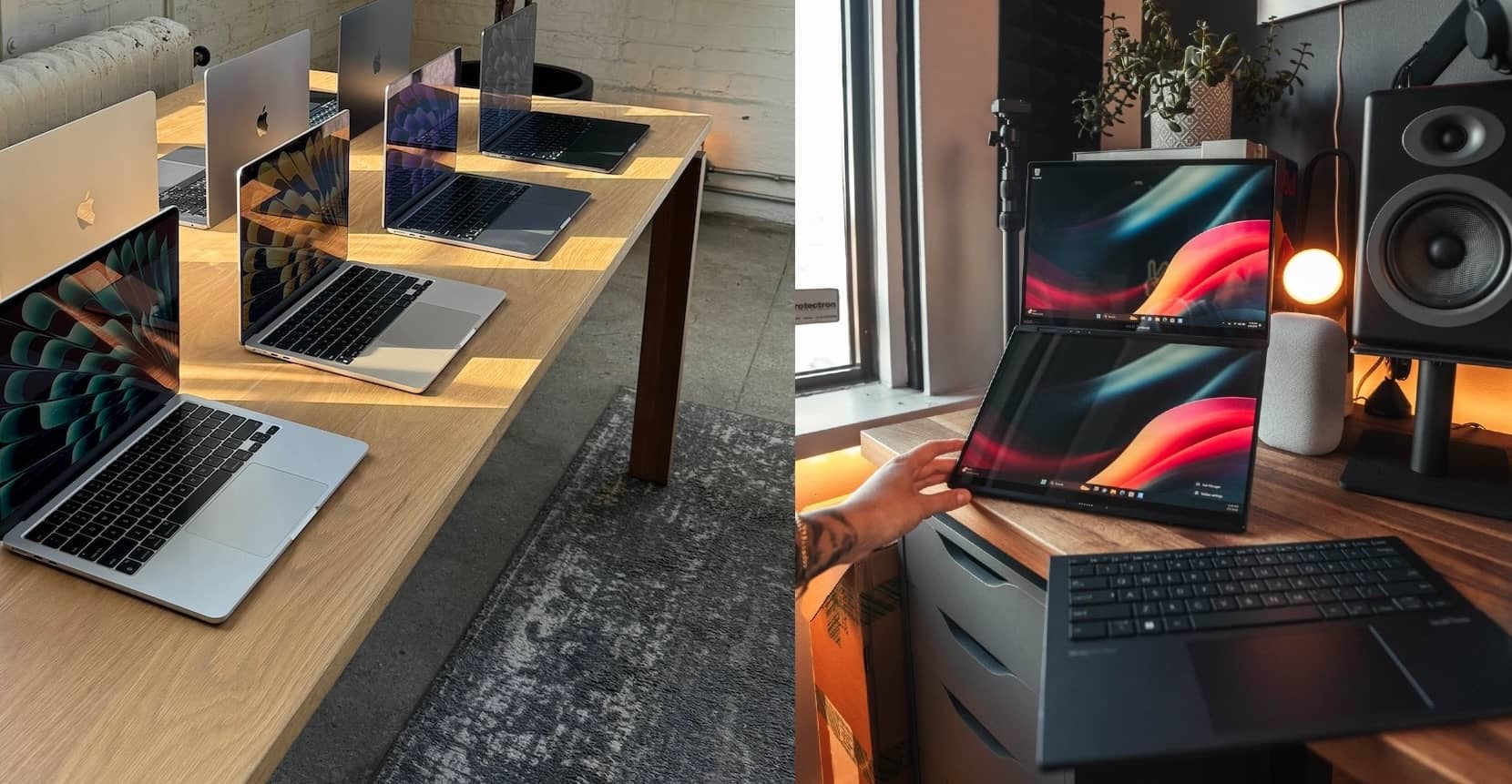
The whole guide in one paragraph: set the budget, pick the use case — office, gaming, or content creation — then spend where it matters: CPU efficiency and RAM for office work, GPU wattage and cooling for gaming, screen quality and memory for creators. In 2026 there is one extra rule sitting on top of all of that: memory is the component the AI boom made expensive, so protect the RAM spec first — 16GB where you can, upgradeable where possible — and never pay for specs your use case cannot exploit. The three worked scenarios at the end show exactly how that thinking plays out.
If you are looking to buy a laptop for the first time, you might be tempted to go to a computer store and ask the staff to recommend one for you. While it is beneficial to see the product firsthand, buying a laptop based on a recommendation from someone unknown is generally a bad idea for a lot of reasons.
First and foremost, you are forced to make quick decisions among the available laptops for sale. Some people are unable to say no when gently persuaded to make a purchase. Meanwhile, you are not aware of the state of the laptop market — and in 2026, with component prices moving month to month, that knowledge gap is more expensive than it has ever been. You could easily overpay, or end up with a device specced below what you needed.
Second, stores always avoid long inventory turnover and prefer that you buy the least wanted units first before introducing the good ones. Typically, these units don’t have very good specifications and provide poor value for the money. In the memory-crunch era this has a new twist: shelves still hold older stock priced when components were cheap — sometimes that makes them bargains, and sometimes they are three-year-old hardware at new-hardware prices. Without knowing what is inside, you cannot tell which one you are looking at.
Lastly, choosing the laptop that meets your expectations really depends on your needs as the user. If you are buying it for yourself, you should know how you want to use it. If you are buying it as a gift for your family, you should also consider their needs. Understanding your needs and budget is one of the most important aspects of buying a laptop. This is not something you can make up your mind about in the middle of a conversation with a store salesman, especially if this is your first time.
Basically, buying a laptop blindly, without knowing your exact needs and budget, leads you to these following situations:
- Under-spec laptop. You finally bought a laptop that doesn’t perform well on the tasks you need the most — in 2026 this usually means an 8GB machine that chokes the first time you open thirty browser tabs and a video call at once.
- Over-spec laptop. You spend more money than you need on features you will never use — a workstation GPU for spreadsheets, or 4TB of storage for web browsing.
- Receiving a defective unit. Some laptop models have issues in their QC and manufacturing quality. This means they might experience intermittent failure despite careful use.
- Overpaying for little value. You pay a great amount of money for a device with fewer features and benefits than other laptops in the same price range — the classic 2026 version is paying new-laptop money for leftover 2022 stock.
We will walk you through the basic to advanced tips to get the best laptop for your needs within your budget, saving you from disappointment and from the marketing tricks.
The Basic Knowledge
When you want to buy a laptop that brings you good value for your money, you should first understand the components installed in it. This information can save you hundreds of dollars by allowing you to fine-tune each component to your specific needs. Below are the most important laptop components to know.
- Processor
A processor is the brain of a laptop, and it typically determines the target market for a specific model. Higher-end processors have more processing power and deliver higher performance.
For years there were two names here: Intel and AMD. In 2026 there are effectively four, in two camps. Intel and AMD still build the x86 processors that run the overwhelming majority of Windows laptops. Alongside them, Arm-based processors — Qualcomm’s Snapdragon X family on Windows, and Apple’s chips in every MacBook — have become a genuine third option, prized for battery life and quiet operation. Each camp names its chips differently, and later in this guide we decode all of them so you can read a spec sheet at a glance.
- Graphics Cards
The terms graphics card, VGA, and GPU all refer to the same thing. Unlike the processor, the graphics card exists to perform graphics-related tasks: displaying images on the monitor, rendering 3D scenes in games, and accelerating video exports. Nvidia dominates the dedicated laptop GPU market with its GeForce RTX line; AMD’s Radeon RX mobile chips exist but appear in far fewer models.
There are two types of graphics. Integrated graphics live inside the CPU, and they have quietly become good: the Arc graphics inside Intel’s Core Ultra chips and the Radeon graphics inside AMD’s Ryzen AI chips can genuinely run esports titles and older games at 1080p. Dedicated graphics cards are separate, more powerful chips with their own memory — mandatory for serious gaming, 3D work, and heavy video editing, and impossible to upgrade later, which makes this the one component worth over-thinking before checkout.
- RAM and VRAM
RAM stores the temporary data the processor needs right now; VRAM does the same job for the GPU. More RAM lets the machine juggle more at once, and the moment you run out, everything slows to a crawl. RAM is also the component at the center of the 2026 price crisis, which is why this guide keeps returning to it.
Two types matter when shopping. LPDDR RAM (the LP is low power) is soldered to the motherboard: efficient, fast, and permanently fixed at whatever capacity you bought. Regular DDR RAM comes in slots and can be upgraded later. That distinction used to be a footnote; in the crunch era it is a buying criterion, because the config you pick on day one may be the config you live with for the machine’s whole life — and aftermarket upgrade kits now cost multiples of what they did in 2024.
- Desktop or Laptop
Before going further, decide whether you need a laptop at all. AIO computers, mini-PCs, and desktop PCs all compete with laptops, and a desktop still buys more performance per dollar — the engineering cost of miniaturizing components into a portable chassis is real. If you answer “yes” to the questions below, proceed to the laptop aisle with a clear conscience.
- Do you need access to your computer in more than one place?
Laptops come with a battery and go where you go. Modern efficiency-focused chips — Snapdragon X, Apple’s processors, Intel’s and AMD’s U-class parts — have pushed real-world battery life well past the full-workday mark, which desktop replacements of a few years ago could only dream about.
- Will you accept less performance per dollar?
Desktop PCs are always more powerful than laptops at the same price. You pay a portability premium — smaller boards, soldered components, thermal compromises. If the machine will live its whole life on one desk, a desktop or mini-PC is usually the smarter buy.
- Do you need a backup or second machine?
If you already have a powerful desktop and want flexibility, a laptop is a great addition — cloud sync makes the two-machine workflow nearly seamless, and an efficient mid-range laptop covers everything the desktop does not need to.
- Do you plan on using it for productivity?
Productivity here means office work, web browsing, and media consumption — the tasks laptops are built around. If you only plan to game, a desktop still serves you better unless the gaming has to travel with you.
Dive into the Components
If you have made it this far, a laptop is the right call. Now the important part: how to read the components — processor, graphics, RAM, SSD, display — in order from most to least important.
- Processor
Windows laptop shelves in 2026 carry three generations of naming side by side, which is genuinely confusing — so here is the decoder ring.
Intel Nomenclature
Intel’s current chips are branded Core Ultra, and the newest generation is Series 3 (launched January 2026, built on the architecture Intel calls Panther Lake). The name reads: brand, family, model number, suffix.
- Family — Core Ultra 5, 7, or 9. Same idea as the old i5/i7/i9: higher is faster and more expensive. A Core Ultra 5 lives in value machines; a Core Ultra 9 lives in high-end ones.
- Model number — Series 3 chips use 300-numbers (325, 335, 365, 386…). Within a family, a higher number means faster clocks or more cache. The first digit tells you the series generation: a 2xx number is last year’s Series 2 — still fine, still sold, just older.
- Suffix and prefix — H marks the higher-core-count performance parts (a Core Ultra 7 365 and 366H look similar on paper, but the H chip carries twice the cores), HX marks the most powerful gaming and workstation silicon, no suffix or U-class parts are the efficient thin-laptop chips, and the new X prefix (as in Core Ultra X9) marks premium configurations with Intel’s strongest built-in Arc graphics, aimed at thin machines with no dedicated GPU.
You will still see the older naming everywhere on store shelves: Core i3 / i5 / i7 / i9 with four- or five-digit numbers like i7-13620H, where the first two digits are the generation (13th) and the letter at the end works the same way (H for performance, U for efficiency). These chips power a lot of 2026’s budget laptops and are perfectly good — just know you are buying a design from a few years back, and check the generation digits so you do not pay 2026 money for a 12th-gen leftover.
One more thing: Celeron and Pentium are dead. Intel retired both brands; the bargain-basement chips are now called “Intel Processor” with N-numbers (N100, N150, N250). They are fine for a browser-and-email machine and hopeless for anything heavier — treat them as the floor, and read our The Best Budget Laptops Under $500 for Home Office and Students (2026) before buying one, because at that price the trade-offs need honest handling.
AMD Nomenclature
AMD runs two naming schemes at once. The traditional one is Ryzen 3 / 5 / 7 / 9 plus a model number and suffix — same levels logic as Intel’s families. The newer one, used on chips with beefed-up AI hardware, is Ryzen AI plus a family and a 300- or 400-number (Ryzen AI 7 350, Ryzen AI 9 HX 370, and the Ryzen AI 400 series introduced at CES 2026). Higher family and higher number mean more performance, same as always.
AMD’s suffixes: HX and HS for performance laptops, U for slim efficient machines. One trap specific to AMD: the company is fond of rebadging older cores under new model numbers — a 2026-sounding name like Ryzen 7 250 is architecturally a couple of generations old. When a price looks too good for the model number, look up the actual core architecture before assuming you found a deal.
Snapdragon and Windows on Arm
The genuinely new option: Windows laptops running Qualcomm’s Snapdragon X chips (and the newer Snapdragon X2 generation). These are Arm processors, the same family of design as Apple’s chips, and they buy you the same things — multi-day-feeling battery life, cool and silent operation, instant wake. Every Snapdragon machine is a Copilot+ PC, and prices now reach well down into the budget segment.
The compatibility story, which was the historic dealbreaker, has mostly resolved: mainstream software either runs natively now or runs cleanly through Microsoft’s Prism emulation. Where it still breaks is at the edges — competitive games with kernel-level anticheat, niche engineering and audio tools, and exotic drivers. Our rule for Arm laptops: list the three most obscure programs you depend on and verify each one works on Arm before you buy. If your list is browsers and Office, you have nothing to check.
How to compare processors by real performance
Do not compare by names — compare by benchmark data from people who tested the machines. The workflow:
- Look up the processor on a benchmark database — Notebookcheck’s mobile CPU list is the most complete, with Cinebench 2024 and Geekbench 6 scores for laptop chips specifically. Always search for the laptop version of a chip — desktop numbers are a different universe.
- Mind the multi-core versus single-core split: multi-core scores predict rendering and compile speed, single-core predicts how snappy everyday work feels.
- Then reality-check with the same chip’s score in the specific laptop you are considering, because the identical processor can perform very differently depending on the cooling of the chassis around it.
Now the practice run, 2026 edition. Say you have a fixed budget and want the most CPU for it. Pick the strongest chip your money should buy — for example a Core Ultra 7 H-class — and search your marketplace for exactly that: “Core Ultra 7 laptop”.
- Focus on the keyword and ignore the sponsored listings that have nothing to do with it — marketplaces bury organic results under ads.
- If everything with that chip lands above your budget, step down one level — Ultra 7 to Ultra 5, or current series to last series, which often carries the best value in the crunch era — and repeat until budget and requirement meet.
- Shortlist the candidates and move on to the graphics card.
- Graphics Cards
We learned earlier that integrated graphics handle light gaming now. For everything beyond that, you are shopping Nvidia’s GeForce RTX 50 series — the Blackwell generation — which spans the whole 2026 laptop market.
Reading the RTX 50 stack
The model numbers work the way you expect: RTX 5050 and 5060 are the budget class (1080p gaming, and the 5060 stretches to 1440p in a good configuration), RTX 5070 is the mid-range (comfortable 1440p), and RTX 5080 and 5090 are the premium tier (high-refresh 1440p, real 4K). Every 50-series card supports DLSS 4 with multi-frame generation — Nvidia’s AI frame-boosting tech, and the single biggest free performance lever in supported games. The previous RTX 40 generation is still on shelves, still capable (DLSS 3 rather than 4), and only worth buying at a genuine discount.
The wattage rule — the most important spec nobody prints on the shelf tag
Here is the thing the model number does not tell you: the same GPU name runs at wildly different power levels in different laptops, and the wattage decides the performance. An RTX 5060 configured at 75 watts and an RTX 5060 configured at 115 watts are, in practice, different graphics cards wearing the same badge — the difference can be a solid tier of frame rate. Thin chassis run low wattages to stay cool and quiet; thick chassis run high ones. Before buying any gaming laptop, find the “maximum graphics power” number on the manufacturer’s spec sheet, and when comparing two laptops with the same GPU at different prices, assume the wattage is the reason until proven otherwise. A cheaper laptop with a higher-wattage version of the same chip is the actual bargain. Notebookcheck’s mobile GPU list shows benchmark results per wattage configuration, which makes it the best tool for this exact homework.
For content creation, Nvidia remains the safe choice — CUDA acceleration in editing and 3D software is mature and dramatic, and the Tensor hardware accelerates the AI features that editing suites keep adding. AMD’s RX mobile GPUs appear in a handful of models at aggressive prices; they game well, but check plugin support before building a creative workflow on one.
To see how these rules translate into actual machines at each price point, our gaming laptop guides do the shelf-checking for you: The 7 Best Budget-Friendly Gaming Laptops of 2026 for the value end, The Best Affordable Gaming Laptops From $1,000 (2026) at the entry point, and The 9 Best Gaming Laptops in 2026 — From Premium to Budget for the full range.
Notable Consideration for Other Components
The processor and graphics card determine how fast your laptop is. The components below determine whether that speed survives contact with real work.
- RAM
The 2026 rules, shaped by the memory crunch:
First, capacity. 8GB is the new marketing bait — enough for genuinely light use, and the first thing that buckles under thirty browser tabs, a video call, and a spreadsheet at once. 16GB is the capacity to protect for anyone doing real multitasking, gaming, or planning to keep the machine past 2028. 32GB is the creator tier — wonderful, and painfully priced this year; buy it if the work justifies it, not for bragging rights. Watch for shrinkflation: a model that shipped 16GB last year may quietly ship 8GB at the same price now. Read the spec line, not the model name.
Second, upgradeability. Laptops with DDR5 slots can grow later; laptops with soldered LPDDR5X cannot, ever. Soldered memory is not automatically bad — it is faster and more efficient, and every thin-and-light uses it — but in the crunch era, a soldered 8GB machine is a dead end sold at a discount. If you must buy soldered, buy the capacity you will need in year three, not the capacity you need today. And if you plan to upgrade a slotted machine, match form factor, generation, and speed, and stick to reputable brands — a bad module means blue screens or a laptop that will not boot.
Third, channels. Two sticks of 8GB outperform one stick of 16GB, because dual-channel operation doubles the memory bandwidth — it is free performance, especially for integrated graphics, which share system RAM. Spec sheets write it as “2x8GB” versus “1x16GB”; prefer the former, or plan to add the second stick.
- SSD
512GB is the sensible minimum in 2026 — modern games regularly pass 100GB each, and video projects eat space even faster. The interface is settled: PCIe NVMe is standard, Gen 4 is the mainstream sweet spot, and Gen 5 drives now ship in high-end machines — dramatic in benchmarks, nice-to-have in daily life. If you find a laptop still selling a SATA drive, that is a signal about the rest of the machine too.
Understand TBW (terabytes written) — the SSD’s endurance budget. Every write wears the drive slightly; when the manufacturer’s TBW estimate is spent, the drive is living on borrowed time. Higher-capacity drives carry higher TBW, which is one more quiet argument for not buying the smallest storage tier.
The cautionary tale here is still the base-model MacBook Air M1 from 2020: owners loved its performance, unaware that its 8GB of RAM forced the system to use the SSD as memory swap constantly. The performance stayed smooth while the writes piled up, and a wave of those base models died young — with the SSD soldered to the board, there was no cheap fix. The lesson generalizes to every platform and has aged into the crunch era perfectly: skimping on RAM does not just cost speed, it spends your SSD’s lifespan to cover the shortfall. A Windows laptop at least lets you replace the worn drive; a machine with everything soldered does not.
Two practical tips close this section. A DRAM cache on the SSD (or Host Memory Buffer on modern DRAM-less drives) smooths sustained writes — worth checking on a replacement drive even though laptop spec sheets rarely mention it. And a chassis with a spare M.2 slot is the cheapest storage insurance there is: adding a second drive later beats replacing the first one.
- Screen
The laptop screen should be treated as your home — it is what you look at every hour the machine is on. The terms that matter: panel type, color gamut, color depth, color accuracy, response time, refresh rate.
- Color Gamut
The gamut is the range of colors a panel can produce, quoted against standards — sRGB for everyday digital content, DCI-P3 for video and HDR work. For office use, ignore it. For content creation, 100% sRGB is the floor and wide P3 coverage is the professional tier. For gamers, a 100% sRGB panel simply looks better — richer, more saturated — and has become common even in budget machines, so it costs little to insist on.
- Color Depth
Depth is the fineness of gradation within the gamut. Aim for 8-bit minimum, 10-bit (native or with FRC) if you grade video or care about smooth gradients — low bit depth shows up as visible banding in skies and shadows.
- Color Accuracy
Accuracy is measured as Delta E (ΔE); at or below 2, a display is considered accurate. Factory-calibrated panels with a published ΔE used to be a workstation luxury and now appear in mid-range creator laptops — look for the calibration claim in the spec sheet, and calibrate after purchase if your work depends on it.
- Response Time
Response time is how fast pixels change state; slow pixels smear fast motion into ghosting trails. This is the spec that exposes fake gaming panels: a cheap display can advertise 144Hz while its pixels respond so slowly that motion looks like 60Hz — a flaw reviewers keep measuring in current budget gaming machines, and one we flag on specific models in our budget gaming guide. Reviewer measurements are the only reliable source here; the shelf tag will not confess.
- Refresh Rate
Refresh rate is how many frames per second the panel can show. 120Hz has become the mainstream standard — even office ultrabooks ship with it now, and it makes scrolling visibly smoother everywhere. Competitive gamers should look at 144-240Hz panels paired with a GPU that can actually feed them, and adaptive sync (G-Sync or FreeSync) to eliminate tearing. A 60Hz panel in 2026 marks a corner that was cut.
- Panel Type
TN
The old budget panel — weak colors, poor viewing angles — is nearly extinct, surviving only in the very cheapest machines. In 2026 you should not accept one.
IPS
The default, and a good one: solid colors, wide viewing angles, no burn-in risk, available at every price. Quality varies with brightness (300 nits is a comfortable floor; 250-nit budget panels look washed out anywhere bright) and with the response-time caveat above.
OLED
Once a flagship exclusive, OLED now appears across the mid-range, with tandem OLED — two emitting layers, brighter and longer-lived — spreading through premium machines. True blacks, infinite contrast, and instant pixel response make it the best-looking panel type for movies, creative work, and gaming alike. The trade-offs: burn-in risk with truly static content (much reduced in current panels, not zero), and a price premium. Mini-LED sits between IPS and OLED — an IPS-type panel with hundreds of dimming zones, excellent for bright HDR without burn-in risk, common in larger creator and gaming machines.
Three Common Scenarios
Now let’s put all of it into practice. Laptop buyers typically fall into one of three scenarios, and the memory crunch has moved the sensible answer in each one.
For Office/Business
- Processor
Efficiency beats power here. A current Core Ultra 5, a Ryzen 5 or Ryzen AI 5, or — the option that did not exist in the old version of this guide — a Snapdragon X machine, whose battery life is the best in the class if your software list clears the Arm check. An N-series Intel Processor covers a pure browser-and-email machine at the absolute floor. Windows 10 reached end of support in October 2025, so every machine you consider should be running Windows 11 — walk away from clearance stock that cannot.
- Graphics Cards
Integrated graphics, full stop. A dedicated GPU in an office laptop is money, weight, and battery life spent on nothing.
- RAM
16GB is the honest recommendation for anyone who lives in browser tabs, video calls, and office suites simultaneously — Windows 11 plus a modern browser will happily consume 8GB on their own. The crunch makes 8GB configs tempting again on price; accept one only for genuinely light use, and prefer a machine with a free RAM slot so the decision is reversible.
- SSD
256GB survives office life, but 512GB is a small step up in price for a large step in comfort and drive longevity.
- Screen
IPS at 300 nits or better; 120Hz is a pleasant modern bonus. If you work near windows, an anti-glare finish matters more than any other spec on this list.
For Gaming
- Processor
An H-class chip — Core Ultra 5/7 H, current Core i5/i7 H, or Ryzen 5/7 H — keeps the GPU fed. Level 9 silicon is for streaming-while-gaming and money-no-object builds; most gamers feel GPU wattage long before they feel CPU family.
- Graphics Cards
The most significant choice, and it is two choices: the tier and the wattage. Pick the tier for your resolution (5050/5060 for 1080p, 5060 at high wattage or 5070 for 1440p, 5080 up for more), then verify the wattage per the rule above. A high-wattage last-gen card at clearance regularly beats a starved current-gen one.
- RAM
16GB minimum, dual-channel, no exceptions — modern titles state it plainly, and the crunch-era 8GB gaming laptop is a stutter machine sold on its GPU sticker. Upgradeable slots are the tiebreaker between otherwise equal machines.
- SSD
512GB is four big installs; 1TB is the comfortable answer. PCIe Gen 4, and a spare M.2 slot if you can get one.
- Screen
Match the refresh to the GPU’s real output — 144Hz for the budget class, higher when the frames exist to use it — insist on adaptive sync, and check a review for response time, because this is where budget gaming panels cheat.
For Content Creation/Rendering
- Processor
Cores are king: Core Ultra 7/9 H or HX, or Ryzen AI 9 class, chosen by multi-core benchmark score in the actual chassis. The battery will live on the charger during renders; that is normal.
- Graphics Cards
Nvidia for the CUDA ecosystem — rendering, encoding, and the AI features that editing suites keep adding all lean on it. VRAM is the creator’s hidden constraint: 8GB handles 4K editing, and heavy 3D or AI work justifies the 12-16GB cards in the 5070-and-up tiers.
- RAM
16GB works for a lightweight photo-and-1080p workflow; 32GB is the real creator tier for 4K timelines and big PSDs. It is also the spec the crunch punished hardest — if 32GB soldered breaks the budget, a 16GB machine with two slots and an upgrade path is the smarter compromise. Check the processor’s supported maximum before counting on that path.
- SSD
1TB or more — media, caches, and exports demand it, and the extra capacity buys endurance too.
- Screen
This outranks everything after the CPU: 100% sRGB for digital delivery, DCI-P3 for film work, factory calibration with a stated ΔE if the client’s brand colors are your problem. OLED and mini-LED earn their premium here faster than anywhere else.
Bonus – High Efficiency Productivity
MacBooks with Apple’s M-series chips remain the efficiency benchmark: extreme performance per watt, silent operation, all-day-and-then-some battery, and a Retina display that flatters every kind of work. The classic limitations still apply — gaming on macOS remains an afterthought despite Apple’s efforts, and some Windows-only professional tools have no Mac version.
The 2026 twist is at the bottom of Apple’s lineup: the MacBook Neo, launched in March and now stickered at $699, with student pricing at $599 and a costlier 512GB Touch ID configuration above it — pricing that has already crept up once in the crunch era. It runs the A18 Pro — an iPhone-class chip whose single-core speed embarrasses laptops at twice the price — in a 13-inch chassis with excellent battery life. It is also built to a price: 8GB of memory, a modest 256GB base SSD, two USB-C ports of different speeds, and an sRGB-only display. For a student or a second machine it is a landmark — the first genuinely budget Mac — but the 8GB ceiling is exactly the constraint the memory-crunch section of this guide warns about, and on a Mac it is soldered with no appeal. Buy it for light work, knowingly.
And if you want MacBook-style battery life on Windows, that is precisely the pitch of the Snapdragon X machines above — the efficiency crown no longer belongs to one company.

Our recommendations
After learning the factors, you can start browsing and shortlisting. In addition to the hard data, research every model you shortlist on social forums — search the model name and see what problems actual owners report. Recurring complaints are the truest spec sheet there is: hinge cracks, coil whine, dim panels, and dead SSDs all show up in owner threads long before they show up anywhere official. Also make sure to seek second opinions in groups or forums, as some laptops are hidden gems waiting to be discovered — and in 2026, add one more check: confirm the listing you are about to buy from is the configuration you researched, because the memory crunch has filled marketplaces with lookalike configs and leftover stock at confusing prices.
- The Best Budget Laptops Under $500 for Home Office and Students (2026)
- The 7 Best Budget-Friendly Gaming Laptops of 2026
- The 9 Best Gaming Laptops in 2026 — From Premium to Budget
- Top 5 MSI Gaming Laptops of 2026 — From Budget-Friendly to Super Premium
Last updated: August 16, 2026 — deep 2026 rewrite: added the memory-crunch playbook, decoded Intel Core Ultra Series 3 / Ryzen AI / Snapdragon X naming, replaced the GPU section with the RTX 50 wattage rule, refreshed SSD and display guidance, updated all three buying scenarios, and covered the budget MacBook Neo.